Index (link)
- 365 - Basics
- Create a new private conversation one to one via search
- Find an existing private conversation one to one via chat list
- Create a new private conversation with more than one person
- Find an existing private conversation with more than one person via search
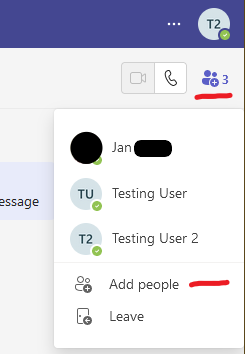
- Add users to an existing private conversation with more than one person
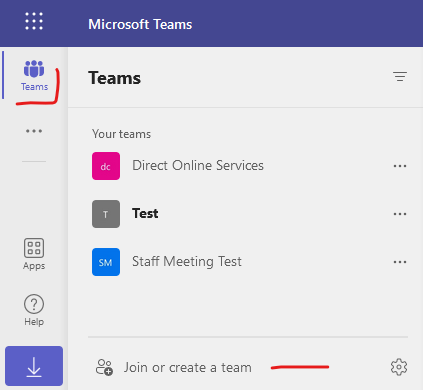
- Create a new Team
- Create a new channel within a Team
- Channel types
- Mentioning people to notify them
- Notifications
- Announcements
- Company-wide announcement
- Force announcement notifications
- Direct Online Services channels
- Upload your profile picture
- Profile card in MS365
Please note that by default in Team channels, like for example Direct Online Services - Announcements, users are not notified about your messages unless you specifically mention them by typing the 'at' @ symbol followed by one of the options mentioned in Mentioning people to notify them. It is therefore recommended to use the mentioning feature whenever you need someone's attention as otherwise they might miss the message.
365 - Basics (link) (back to top)
-
How to sign in through the browser
- Go to office.com
- Click "Sign in" at the top right
- Type in your MS365 email address/username ([email protected]/[email protected])
- If Microsoft asks whether the account is "Home" or "Work or school", choose the latter.
- You might have to prove it's you using the Microsoft Authenticator app on your phone. If this is the first time you're logging in then Microsoft will ask you to set it up.
- If you're having any issues, please contact IT Support
-
How to download MS Office for desktop (which includes MS Teams for desktop)
-
If you have admin rights on your machine:
- Go to office.com and sign in.
- Expand the "Install office" dropdown menu at the top right
- Select the top "Premium Office apps" option
- Follow on-screen instructions
- If you don't have admin rights or have any issues, please contact IT Support
-
If you have admin rights on your machine:
-
How to download MS Teams separately
- Click here
- If you're having any issues, please contact IT Support
-
MS Teams documentation from Microsoft
- Click here
-
For users coming from the TeamZeusApp
-
There are some differences worth pointing out:
- On TZ, you have groups -> threads (either within a group or separate) -> messages. On MS Teams, you have either Teams -> channels -> conversations -> messages, or you have private one to one/group chats -> messages.
- On TZ on a group thread, you can add users outside of the group. On MS Teams in team channels, you can only have members of the team. There is however an update being prepared by Microsoft to alter this limitation.
- Groups on TZ essentially have the same purpose as teams on MS Teams. They are either actual departments or groups of people communicating about a certain topic.
- TZ is an isolated messaging platform with its own calendar. Whereas MS Teams is fully integrated with MS365 and its services. So in MS Teams you can have access to SharePoint sites, your Outlook calendar, audio and video meetings and so on.
-
There are some differences worth pointing out:
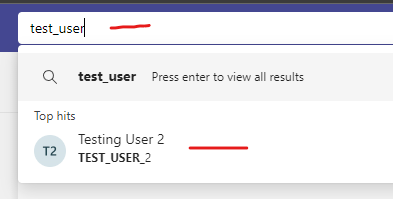
Create a new private conversation one to one via search (link) (back to top)
By searching for the person and clicking on them.
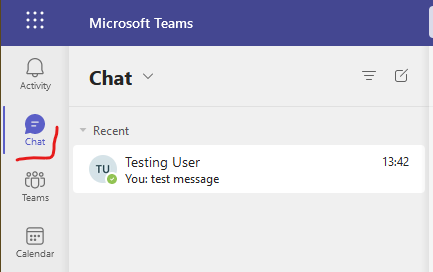
Find an existing private conversation one to one via chat list (link) (back to top)
-
You can find existing one to one conversations on the "chat" tab.
-
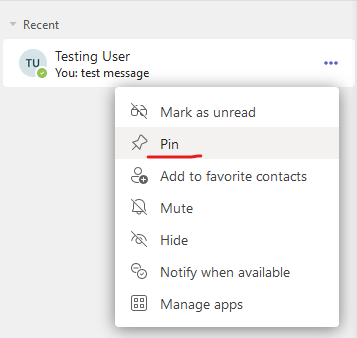
You can also pin chats to a "pinned" section at the top of the chat list.
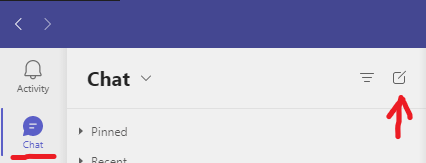
Create a new private conversation with more than one person (link) (back to top)
By clicking on the "new chat" button on the chat tab.
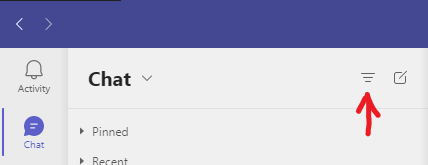
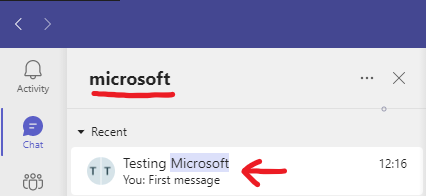
Find an existing private conversation with more than one person via search (link) (back to top)
-
By clicking on the "filter" button
-
Typing the keyword and clicking on the chat.
Add users to an existing private conversation with more than one person (link) (back to top)
On the relevant chat, click the "View and add participants" button and "Add people".
Create a new Team (link) (back to top)
By going to the "Teams" tab and clicking on "Join or create a team"
Create a new channel within a Team (link) (back to top)
-
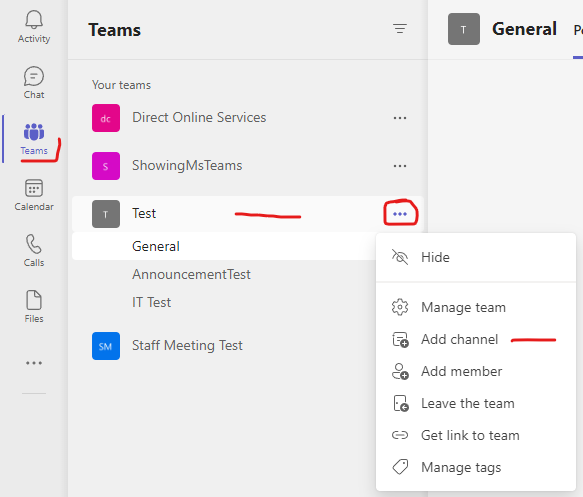
By going to the "Teams" tab, clicking on the three-dot button next to the relevant team, clicking "new channel"
-
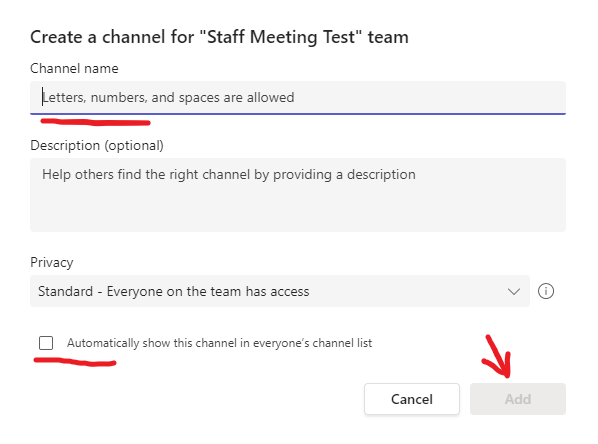
Filling in the new channel name and clicking "Add". You might also wanna tick the "Automatically show this channel in everyone's channel list".
Channel types (link) (back to top)
- You can create three different channel types in MS Teams: standard, private and shared.
- Please see the table below to find the main differences between them.
| Feature | Standard | Private | Shared |
|---|---|---|---|
| People can be added to the channel without adding them to the team. | No | No | Yes |
| Channel membership can be limited to a subset of the team. | No | Yes | Yes |
| Channel can be shared directly with other teams. | No | No | Yes |
| Moderation | Yes | No | No |
| Each channel has a dedicated SharePoint site. | No | Yes | Yes |
| Scheduled meetings | Yes | No | Yes |
Mentioning people to notify them (link) (back to top)
- By default in Team channels users are not notified about your messages unless you specifically mention them.
-
You can mention:
- individual users as long as they are members of the conversation by typing "@" and their name
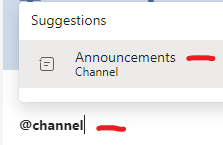
- a whole channel within the channel by typing @channel
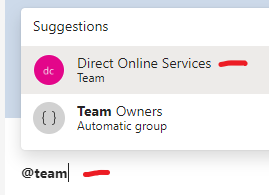
- a whole team within a channel of that team by typing @team
- a tag, if it's set up, which groups up a subset of users within a team
- If you use one of the above options, affected users will get a pop-up notification as well as a note in the 'Activity' tab.
Notifications (link) (back to top)
- By default, every user gets a notification about new 1-1 and group chats, replies to your conversations and after being mentioned using the 'at' @ symbol followed by the person's name/the channel's name or the team's name.
- Administrators can't change these for you. They can only assist you to change it yourself.
- You can have a look at Microsoft's intro to notifications here and how to change them here.
Announcements (link) (back to top)
-
Announcements can be sent in any channel by clicking the "New conversation" button.

-
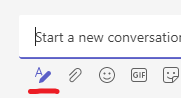
Then the 'format' button.
-
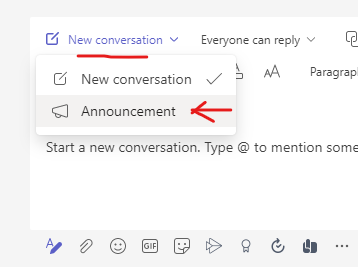
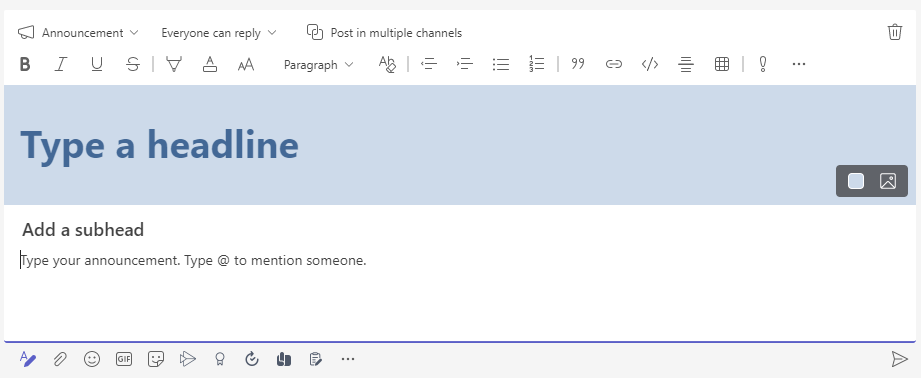
And then change the type from "New conversation" to 'Announcement' to switch to a full announcement editor.
-
This changes the editor to the below, where you can edit and stylise a lot of aspects of the announcement including a headline with a picture and so on.
-
Posting the announcement will make the channel bold like any other channel with new messages. However, this might not be enough to pick everyone's attention. In that case, it might be good to
-
mention the whole channel by typing @channel and selecting the channel's name
-
or mention the whole team by typing @team and selecting the team's name (only the team of the channel).
-
mention the whole channel by typing @channel and selecting the channel's name
Company-wide announcement (link) (back to top)
-
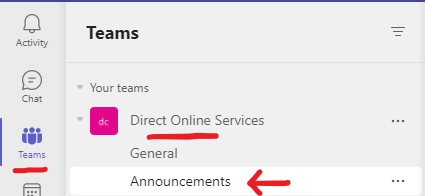
To send a company-wide announcement on MS Teams you can use the 'Announcements' channel within the "Direct Online Services" team, which always includes every single DOS MS365 user.
- For further instructions please see the Announcements guide.
Force announcement notifications (link) (back to top)
- By default, MS Teams does not notify you about messages in channels unless you, the channel or the team are mentioned. More on that here and here.
-
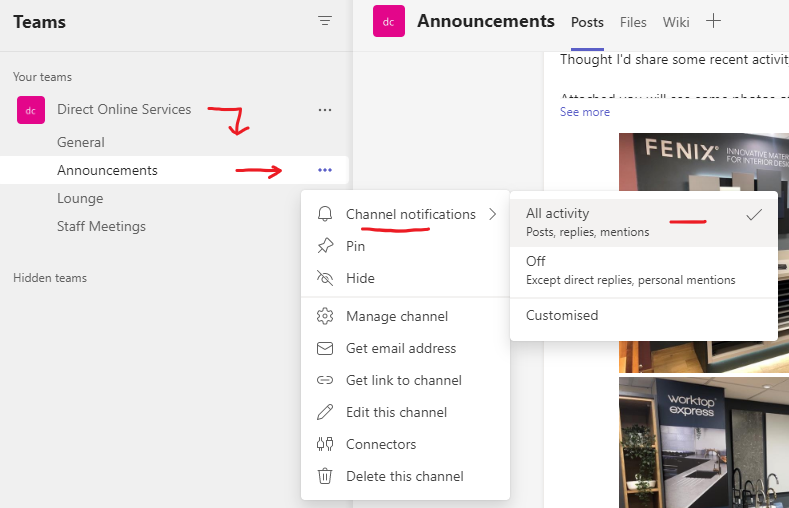
To change this for the announcement channel so that you do not miss any announcements, please click on the three dots next to the channel and follow the screenshot below to enable notifications about all the activity in said channel by changing "Channel notifications" to "All activity".
Direct Online Services channels (link) (back to top)
- General - mandatory channel in every team, currently not used
- Announcements - for posting company-wide announcements
- Lounge - for non-work-related conversations like birthdays, lost keys, etc.
- Staff Meetings - for scheduling, discussing and viewing staff meetings
Upload your profile picture (link) (back to top)
- Go to https://office.com.
-
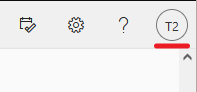
Click on the profile button at the top right.
-
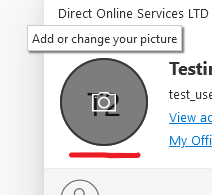
Click on the large circle next to your username. It changes as follows upon hovering your mouse over it.
-
Drag and drop the new picture or click the "Upload a new photo" link, which opens a new window for you to find the picture file.
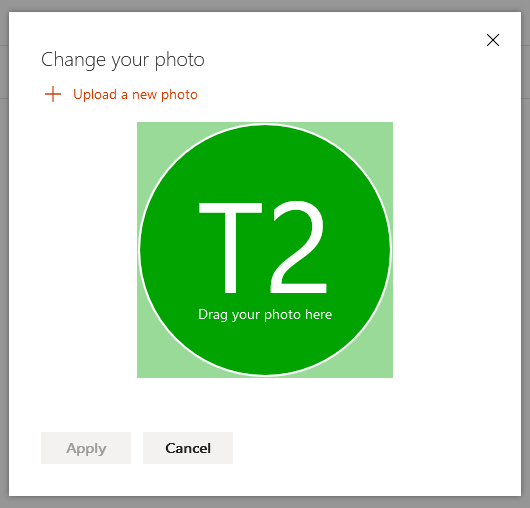
- Now you can move and resize the picture. Once done, click on "Apply" to finish the process.
- Please note that due to the complexity of the MS365 platform it can take several days for the new picture to propagate through the system and we have noticed that sometimes the old picture can get stuck for example in Teams for a while. Completely signing out of MS Teams and signing back in can help update it on your machine.
Profile card in MS365 (link) (back to top)
-
If you hover your mouse over someone's name or picture either in Teams or in Outlook you should get a profile card pop up similar to this:
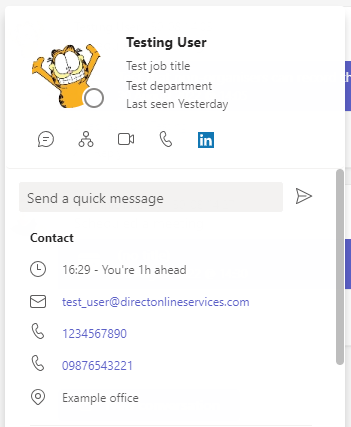
- It can differ slightly between apps.
- There is some information that you can change yourself like your name, office name and your mobile number by going to this link.
- But information like your job title and department can only be changed by administrators. You can contact them by following the information found here.
- Please note that due to the complexity of the MS365 platform it can take several days for this information to propagate through the system and we have noticed that sometimes old information can get stuck for example in Teams for a while. Completely signing out of MS Teams and signing back in can help update it on your machine.