Index (link)
- 365 - Basics
- Open your calendar
- Open other calendars
- Create event/meeting
- Create event/meeting using the scheduling assistant
- Book a meeting room
- Do I have the meeting room booked?
- Overbooking a meeting room
- Calendar privacy
- Invite other people to an existing event/meeting as an organiser
- Invite other people to an existing event/meeting as an attendee
365 - Basics (link) (back to top)
-
How to sign in through the browser
- Go to office.com
- Click "Sign in" at the top right
- Type in your MS365 email address/username ([email protected]/[email protected])
- If Microsoft asks whether the account is "Home" or "Work or school", choose the latter.
- You might have to prove it's you using the Microsoft Authenticator app on your phone. If this is the first time you're logging in then Microsoft will ask you to set it up.
- If you're having any issues, please contact IT Support
-
How to download MS Office for desktop (which includes MS Teams for desktop)
-
If you have admin rights on your machine:
- Go to office.com and sign in.
- Expand the "Install office" dropdown menu at the top right
- Select the top "Premium Office apps" option
- Follow on-screen instructions
- If you don't have admin rights or have any issues, please contact IT Support
-
If you have admin rights on your machine:
-
How to download MS Teams separately
- Click here
- If you're having any issues, please contact IT Support
-
MS Teams documentation from Microsoft
- Click here
-
For users coming from the TeamZeusApp
-
There are some differences worth pointing out:
- On TZ, you have groups -> threads (either within a group or separate) -> messages. On MS Teams, you have either Teams -> channels -> conversations -> messages, or you have private one to one/group chats -> messages.
- On TZ on a group thread, you can add users outside of the group. On MS Teams in team channels, you can only have members of the team. There is however an update being prepared by Microsoft to alter this limitation.
- Groups on TZ essentially have the same purpose as teams on MS Teams. They are either actual departments or groups of people communicating about a certain topic.
- TZ is an isolated messaging platform with its own calendar. Whereas MS Teams is fully integrated with MS365 and its services. So in MS Teams you can have access to SharePoint sites, your Outlook calendar, audio and video meetings and so on.
-
There are some differences worth pointing out:
Open your calendar (link) (back to top)
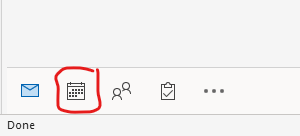
You can find the calendar button at the bottom left.
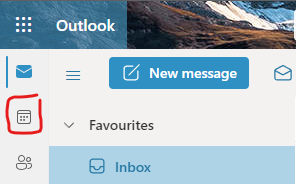
You can find the calendar button at the top left.
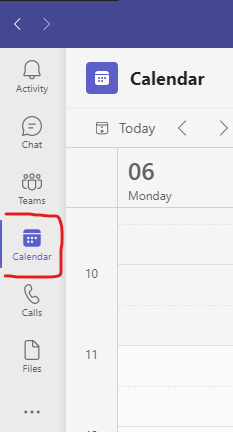
You can find the calendar button at the top left.
Open other calendars (link) (back to top)
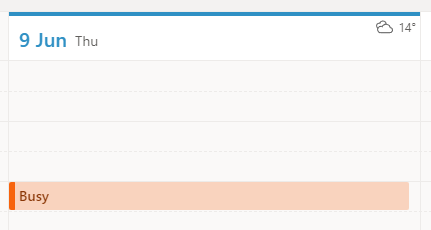
Please note that user calendars are private by default. This means you will only see "busy" where other users have events/meetings.
-
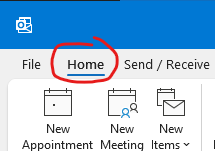
Open your calendar (how to) and make sure you are on the "Home" tab.
-
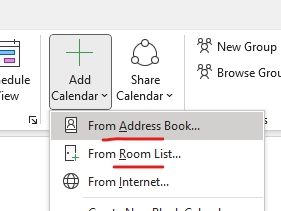
Click on the "Add Calendar" dropdown menu and select "From Address Book" (users, teams, etc.) or "From Room List" (meeting rooms)
-
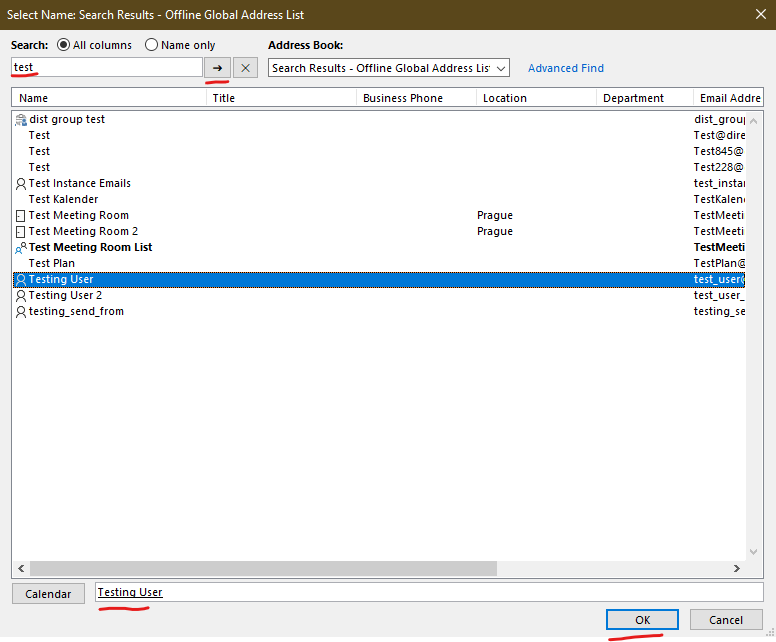
You can search using the box at the top left (type and click the arrow) and once you find the desired calendar double-click on it on the list to add it to the box at the bottom. And then click "OK"
-
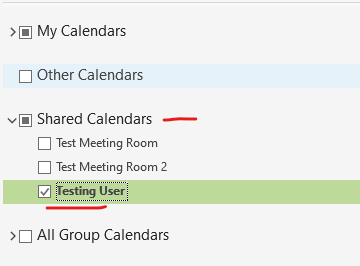
You can then find it on the "Shared Calendars" list on the left. "Shared Calendars" equals "People's calendars" from the Web Outlook.
- The calendar should refresh on its own but you can force it by going into the "Send / Receive" tab and clicking "Send/Receive All Folders"
Please note that user calendars are private by default. This means you will only see "busy" where other users have events/meetings.
-
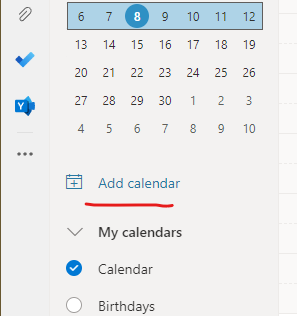
Open your calendar (how to) and click on "Add calendar".
-
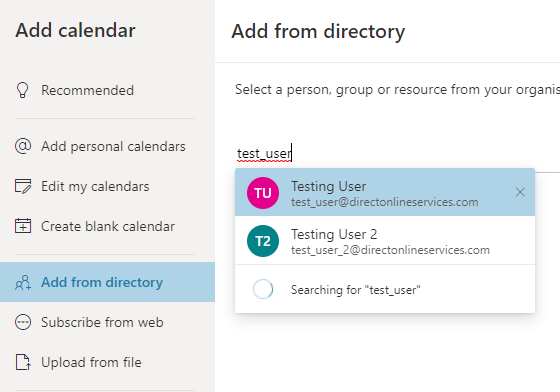
Click on "Add from directory" and here you can search for the calendar you require. You can search both by name and email address.
-
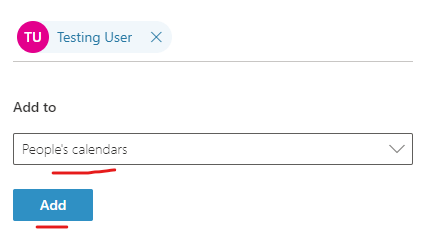
Then select where the calendar is supposed to be added. "People's calendars" equals "Shared Calendars" from the Desktop Outlook. And click "Add"
-
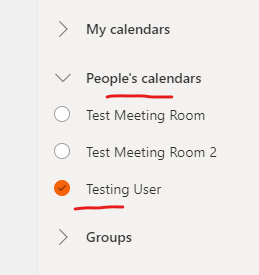
You can then find the calendar on the left hand side under the previously selected category (here under "People's calendars").
- You can refresh the calendar by reloading the page.
Create event/meeting (link) (back to top)
-
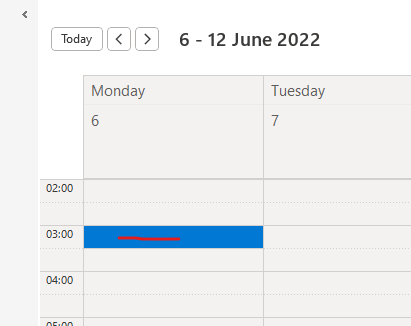
Open your calendar (how to) and the simplest way to create a new event is to just double-click on the desired day and time.
-
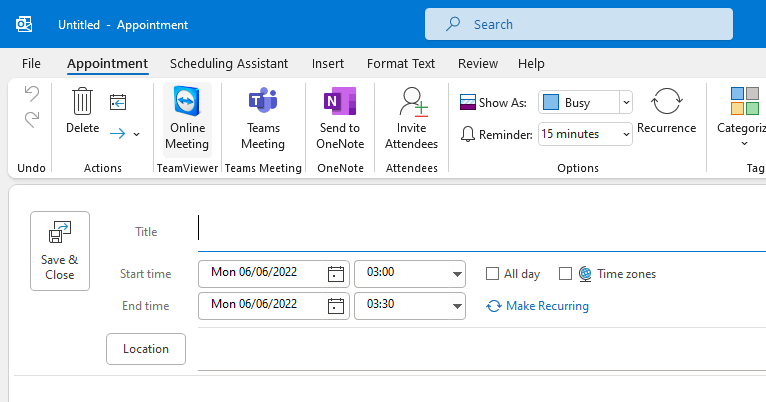
This opens the new "Untitled - Appointment" screen. Here you can edit lots of things but the important bits are the title, description, "Invite attendees" at the top and the start/end date/time.
-
Alternatively if you click on the "Teams Meeting" button, it changes the event into a Teams Meeting, which adds some new fields and options. This button appears in the desktop Outlook only when you have the desktop MS Teams installed.
-
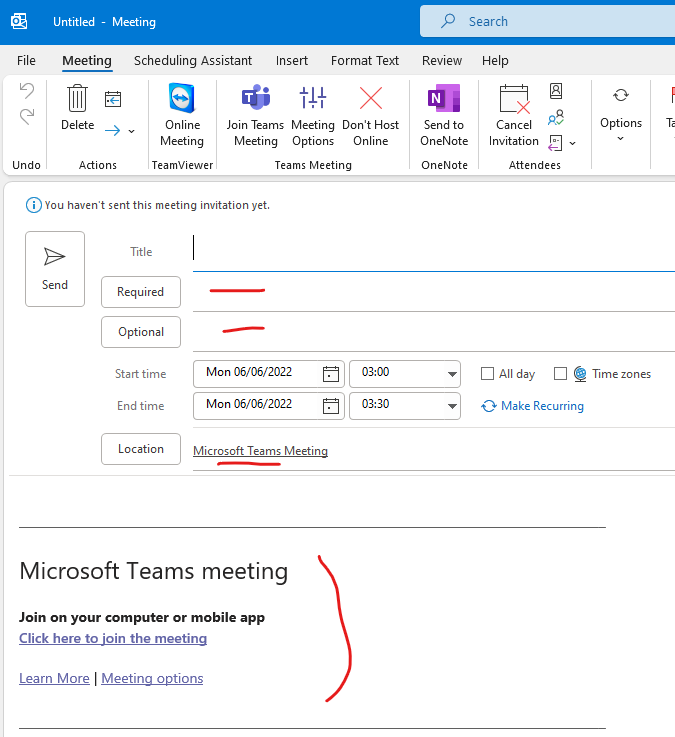
Here you can see what is added on a Teams meeting. "Microsoft Teams Meeting" is added to the "Location" field but you can still add a meeting room there (how to)
-
Open your calendar (how to) and the simplest way to create a new event is to just double-click on the desired day and time. Single-click works too, but gives you only limited options.
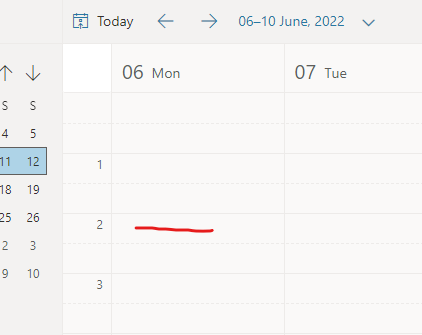
-
This opens the new event screen. Here you can edit lots of things but the important bits are the title, description, "Invite attendees" and the start/end date/time.
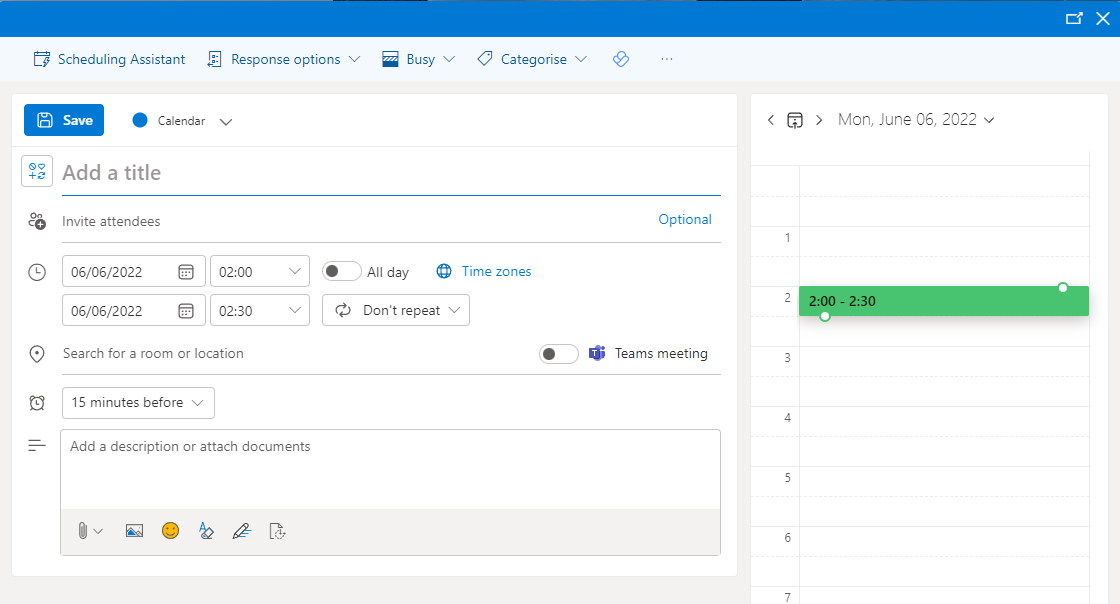
-
Alternatively if you click on the "Teams Meeting" button, it changes the event into a Teams Meeting, but inlike with the desktop Outlook it doesn't actually change anything visibly.
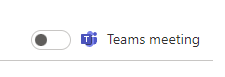
-
Open your calendar (how to) and the simplest way to create a new event is to just click on the desired day and time.
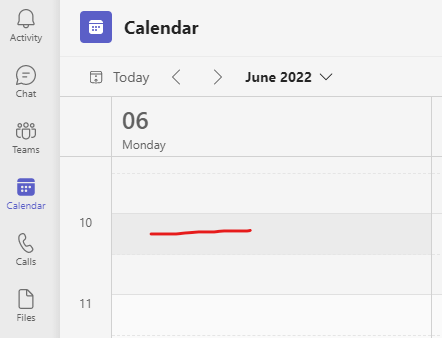
-
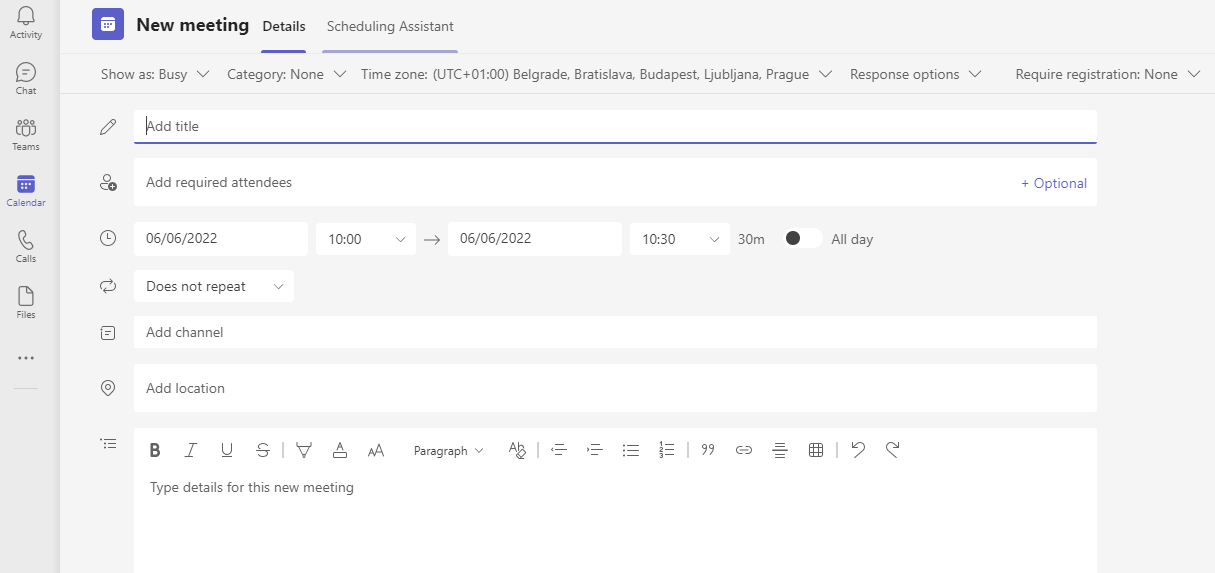
This opens the new meeting screen. Here you can edit lots of things but the important bits are the title, description, "Add required attendees" and the start/end date/time.
Create event/meeting using the scheduling assistant (link) (back to top)
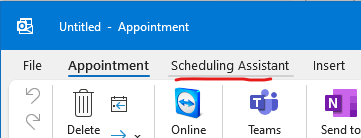
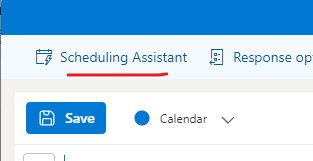
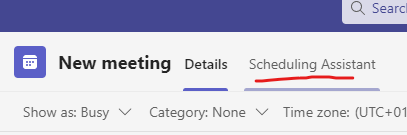
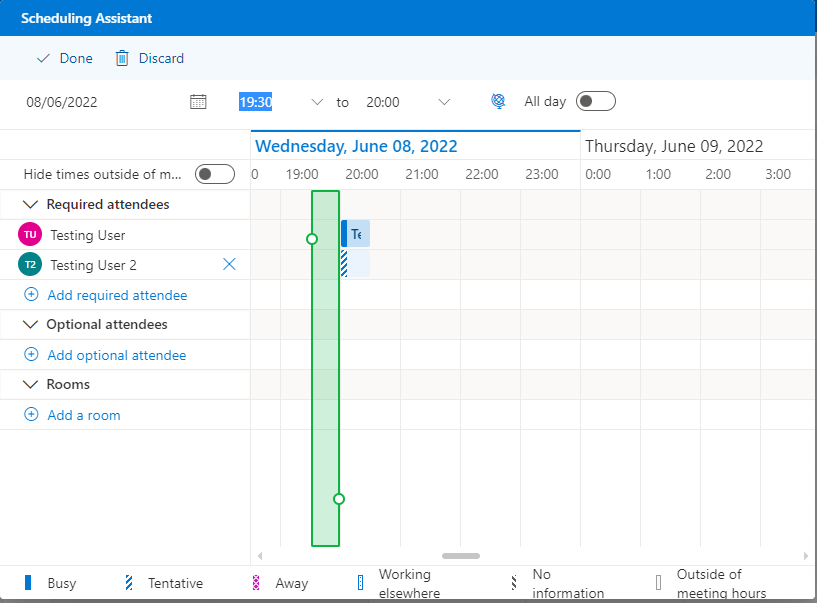
- The schedulling assistant is available in all three "apps" - desktop Outlook, Web Outlook and Teams - and gives you a practical overview of when are all the attendees (including meeting rooms) busy to help you pick the right date and time for your meeting. You can access it from the "new event/meeting" screen.
-
-
The Schedulling Assistant looks quite similar and works the same in all three apps. And on this example from Web Outlook you can see that the Testing User (the organiser) has an event at 20:00 and the Testing User 2 has also been invited to some event at 20:00 (different styles and colours of events are explained at the bottom). This way you can see when everyone is busy and pick the right time accordingly.
Book a meeting room (link) (back to top)
-
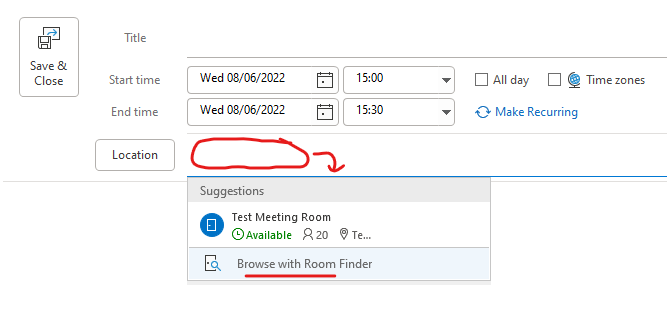
Click the empty space next to the "location" button and then click on "browse with room finder"
-
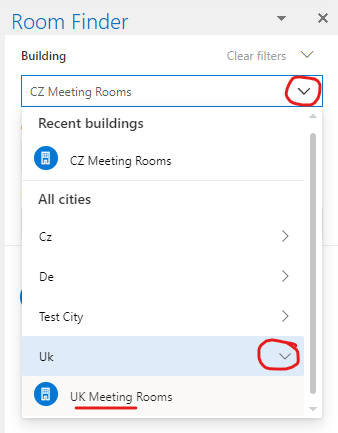
Open the dropdown menu under "building", expand the relevant "city" and click on the relevant meeting room list. We have used the "city" attribute here as the country.
-
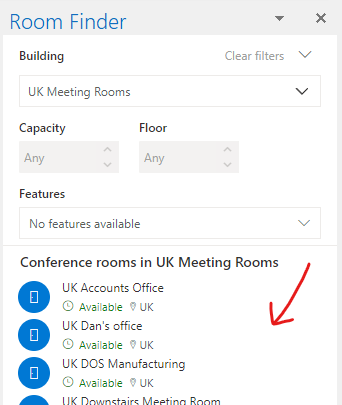
This should show all the meeting rooms on that list.
- Once you have created the meeting you should receive an acceptance message from the meeting room and the meeting should show up on the meeting room's calendar, which you can check by following the instructions here Do I have the meeting room booked?
- If the meeting room has not accepted the meeting or the meeting has not shown up on its calendar even though it looked free, you can remove the meeting room from the meeting, save it and then add it back in and save it. This should prompt the meeting room to re-check its availability and respond.
- If the meeting room has declined the meeting, you either have to contact the organiser of the existing meeting to move it or move your own meeting to a different time.
-
Click into the "search for a room or location" field and then on "browse with room finder"
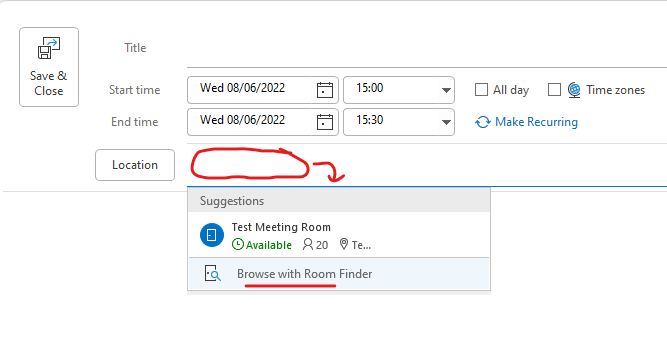
-
Open the dropdown menu under "building", expand the relevant "city" and click on the relevant meeting room list. We have used the "city" attribute here as the country.
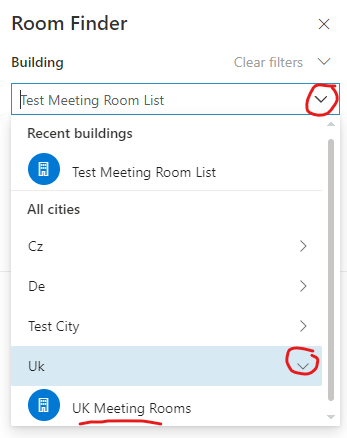
-
This should show all the meeting rooms on that list.
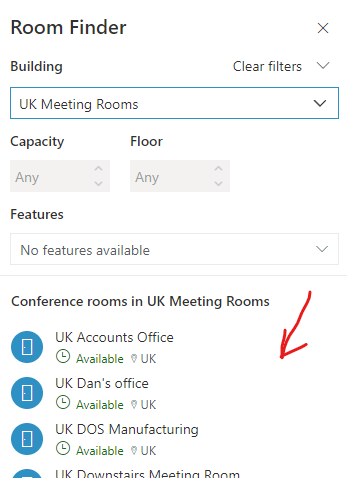
- Once you have created the meeting you should receive an acceptance message from the meeting room and the meeting should show up on the meeting room's calendar, which you can check by following the instructions here Do I have the meeting room booked?
- If the meeting room has not accepted the meeting or the meeting has not shown up on its calendar even though it looked free, you can remove the meeting room from the meeting, save it and then add it back in and save it. This should prompt the meeting room to re-check its availability and respond.
- If the meeting room has declined the meeting, you either have to contact the organiser of the existing meeting to move it or move your own meeting to a different time.
-
Click into the "Add location" field which will show you the meeting room list you used previously (or all the meeting room lists, see 3. below):
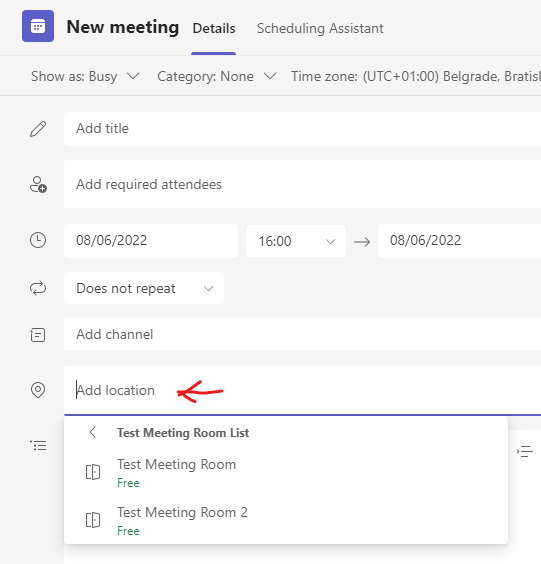
-
If you need to access a different meeting room list, click on the list name:
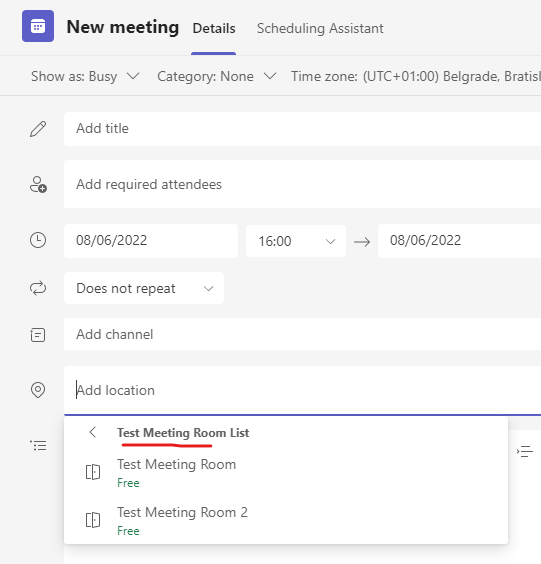
-
And this will show you all the meeting room lists.
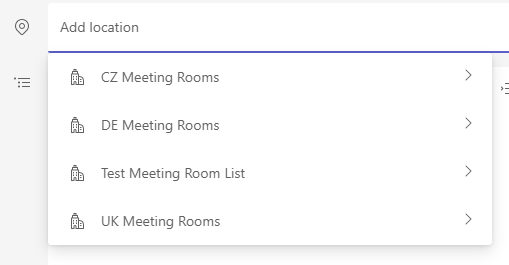
- Once you have created the meeting you should receive an acceptance email from the meeting room and the meeting should show up on the meeting room's calendar, which you can check by following the instructions here Do I have the meeting room booked?
- If the meeting room has not accepted the meeting or the meeting has not shown up on its calendar even though it looked free, you can remove the meeting room from the meeting, save it and then add it back in and save it. This should prompt the meeting room to re-check its availability and respond.
- If the meeting room has declined the meeting, you either have to contact the organiser of the existing meeting to move it or move your own meeting to a different time.
Do I have the meeting room booked? (link) (back to top)
- After scheduling a meeting in a meeting room you need to make sure the meeting room has actually accepted the meeting. Otherwise you would have the meeting scheduled but not in the selected meeting room.
- For the meeting organiser the surest way of doing that is to check the meeting room's calendar.
- Follow the instructions on how to add a calendar in the Desktop Outlook here Open other calendars under the "Desktop Outlook" tab and add the relevant meeting room's calendar.
- When a meeting room accepts the meeting, it then shows the meeting on its calendar along with the organiser's name. The name of the meeting and any other details about the meeting are still kept private.
- If the meeting does not show up on the meeting room's calendar in a few seconds, you can refresh the calendar by going into the "Send / Receive" tab and clicking "Send/Receive All Folders"
- When the meeting is not accepted by the meeting room, you receive a declination email from the meeting room and the meeting will not appear on the meeting room's calendar.
-
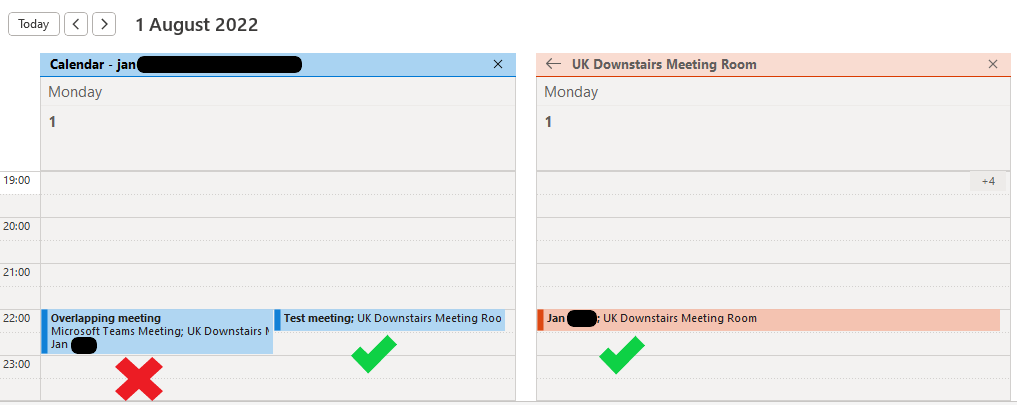
Below you can see that the "Test meeting" has been accepted by the meeting room and the "Overlapping meeting" has not been accepted by the meeting room as it does not appear on the meeting room's calendar.
- Follow the instructions on how to add a calendar in the Web Outlook here Open other calendars under the "Web Outlook" tab and add the relevant meeting room's calendar.
- When a meeting room accepts the meeting, it then shows the meeting on its calendar along with the organiser's name. The name of the meeting and any other details about the meeting are still kept private.
- You can refresh the calendar by reloading the page.
- When the meeting is not accepted by the meeting room, you receive a declination email from the meeting room and the meeting will not appear on the meeting room's calendar.
-
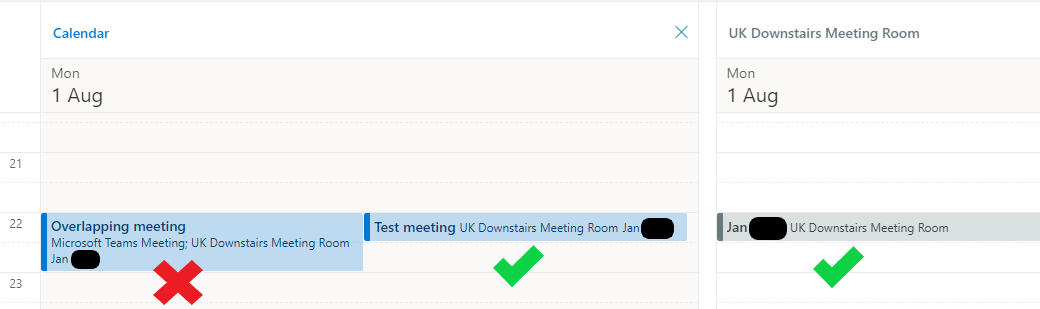
Below you can see that the "Test meeting" has been accepted by the meeting room and the "Overlapping meeting" has not been accepted by the meeting room as it does not appear on the meeting room's calendar.
Overbooking a meeting room (link) (back to top)
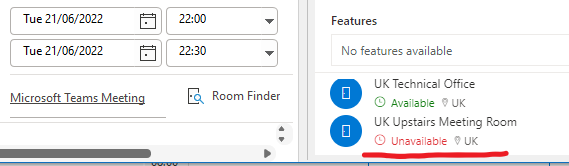
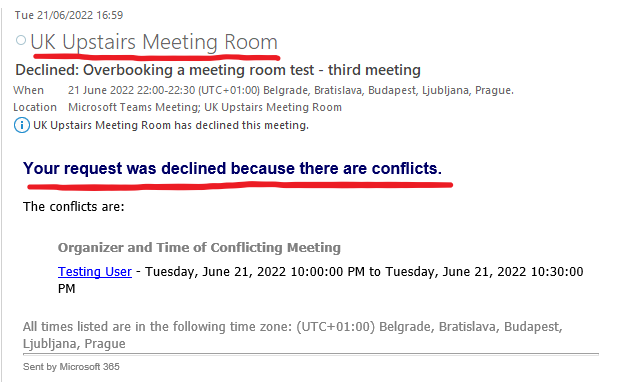
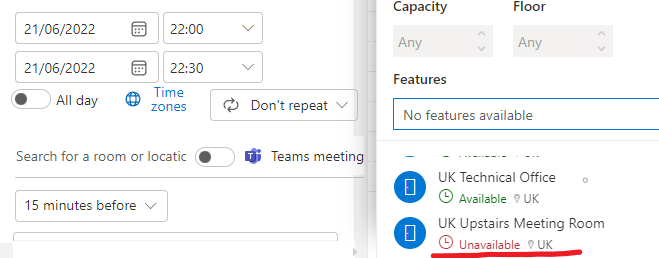
Meeting rooms in 365 behave in many ways like an automated user, which means they show up as "busy" when already booked and when you try overbooking them, they automatically decline the meeting. Please see below, what it looks like in practice.
-
Meeting room shows up as "busy" or "unavailable", when it's already booked.
-
When you try overbooking the meeting room, you promptly receive a declination email from the meeting room.
-
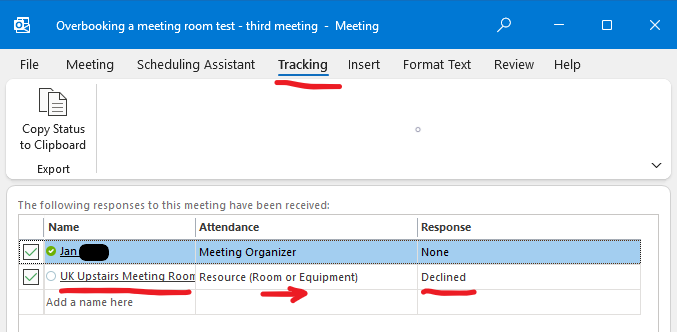
The meeting room stays in the "location" section of the meeting, but when you check who accepted the meeting (double-click to open the meeting) you'd see that the meeting room declined. Which means you have to reschedule the meeting for another time.
-
Meeting room shows up as "busy" or "unavailable", when it's already booked.
-
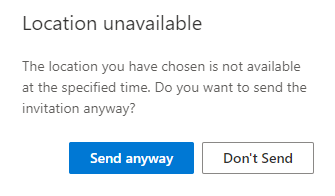
When you try overbooking the meeting, you get a warning, that the location is already booked.
-
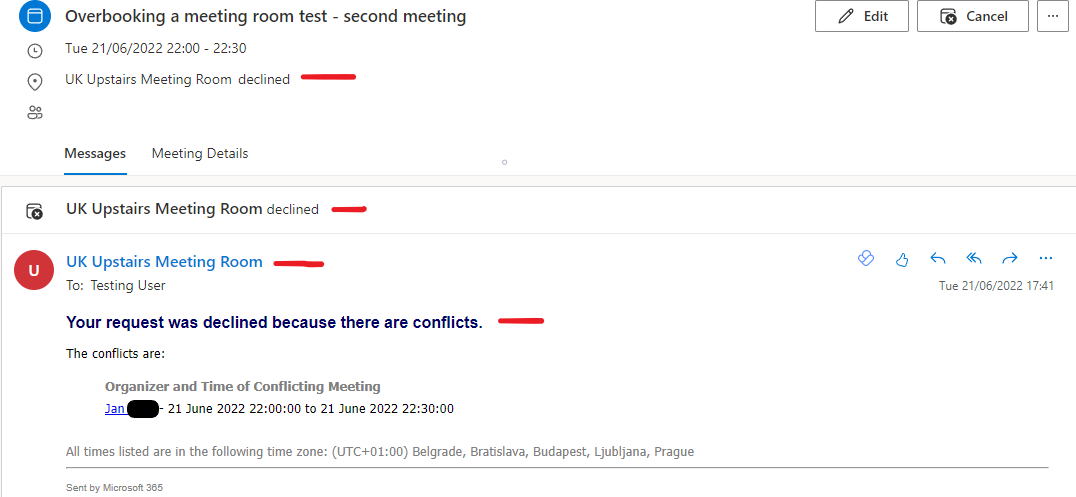
If you proceed regardless of the warning you promptly receive a declination email from the meeting room.
-
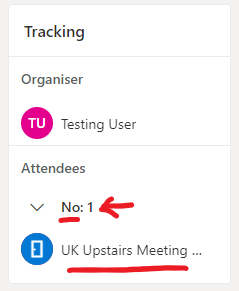
The meeting room stays in the "location" section of the meeting, but when you check who accepted the meeting (double-click to open the meeting) you'd see that the meeting room declined. "No:1" means there is 1 participant, who declined, i.e. the meeting room. Which means you have to reschedule the meeting for another time.
-
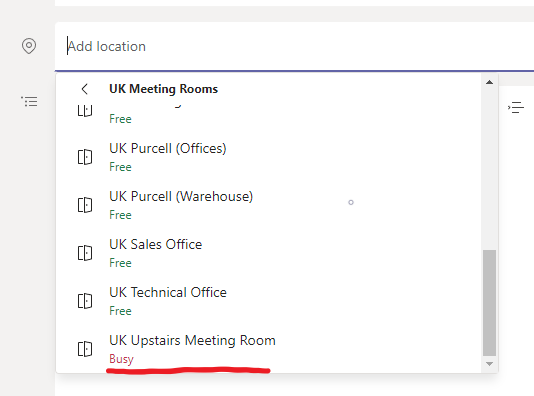
Meeting room shows up as "busy" or "unavailable", when it's already booked.
-
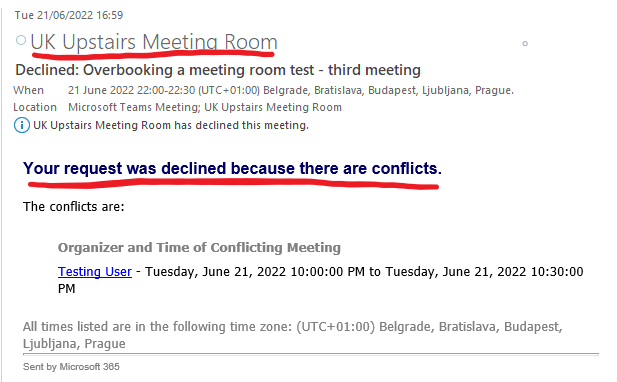
When you try overbooking the meeting, you promptly receive a declination email from the meeting room (as shown in the desktop Outlook).
-
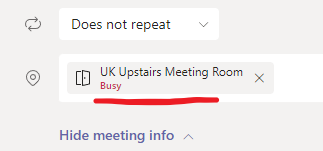
The meeting room stays in the "location" section of the meeting, but keeps showing as "busy".
-
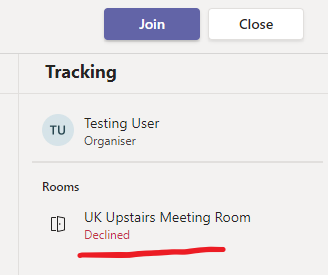
And when you check who accepted the meeting you'd see that the meeting room declined. Which means you have to reschedule the meeting for another time.
Calendar privacy (link) (back to top)
-
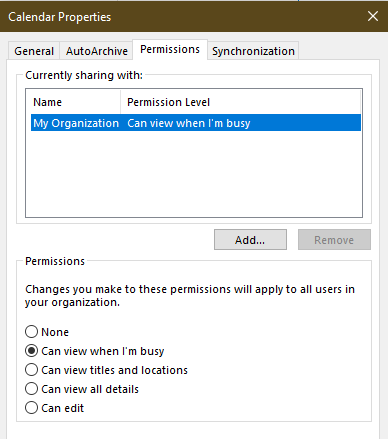
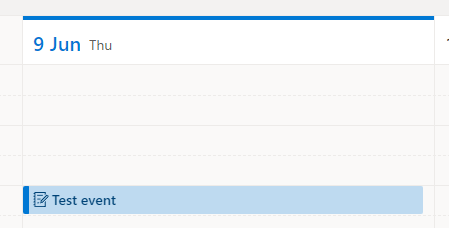
Below you can see the default privacy settings on your calendar. This means that when people will view your calendar, they won't actually see why you're busy at that particular time as event details would be hidden from them. However, you can either change this or add certain users that would be able to see more.
-
As an example this is what the test user sees in their calendar.
-
And this is what I can see when viewing the test user's calendar.
Invite other people to an existing event/meeting as an organiser (link) (back to top)
-
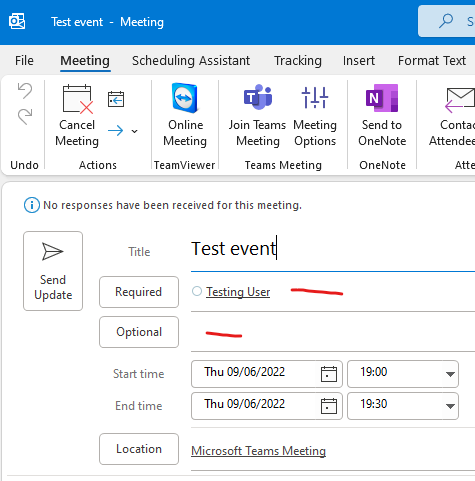
When you're the meeting organiser, adding new attendees is as simple as when creating a new meeting. Double-click the meeting in the calendar to open it.

-
Add people as required or optional attendees
-
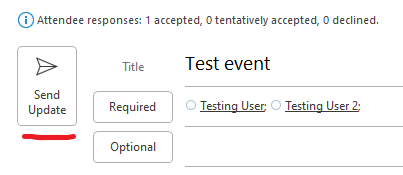
And click "Send Update".
-
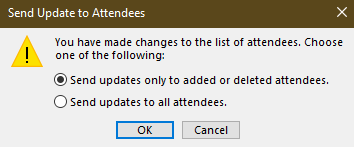
And as you can see you can send this update to everyone or only to the new/deleted attendees.
-
When you're the meeting organiser, adding new attendees is as simple as when creating a new meeting. Double-click the meeting in the calendar to open it.

-
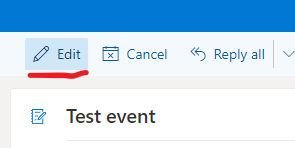
Click "Edit"
-
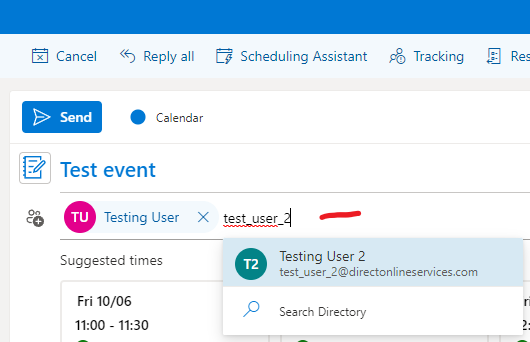
Add attendees as required.
-
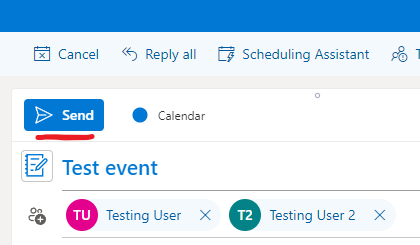
And click "Send".
-
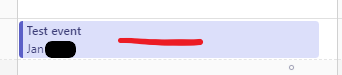
When you're the meeting organiser, adding new attendees is as simple as when creating a new meeting. Double-click the meeting in the calendar to open it.
-
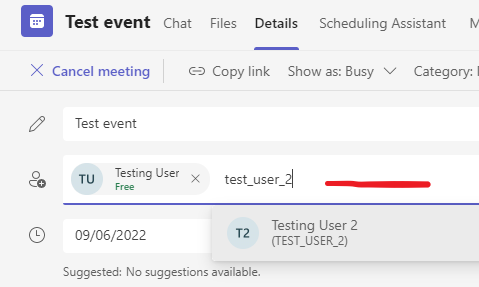
Add new attendees.
-
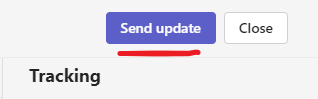
Click "Send update".
Invite other people to an existing event/meeting as an attendee (link) (back to top)
-
When forwarding is enabled on the meeting (default option), you can invite other users by opening the meeting in the calendar by double-clicking on it.

-
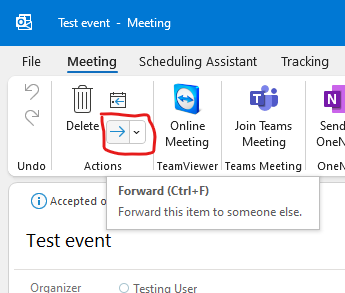
This opens the meeting window, where you can find the "Forward" button as shown.
-
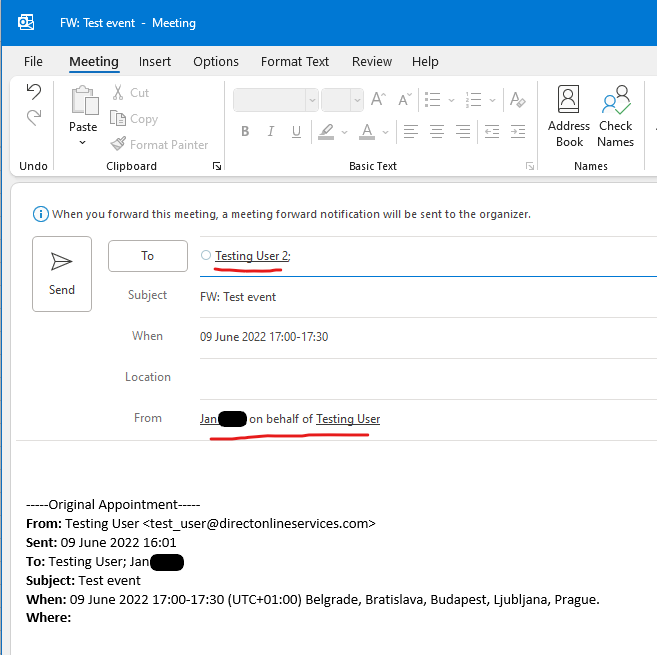
That opens a "new message" window with prefilled details of the meeting, where you can simply add the person's email. You can also see, that you are essentially inviting on behalf of the meeting organiser.
-
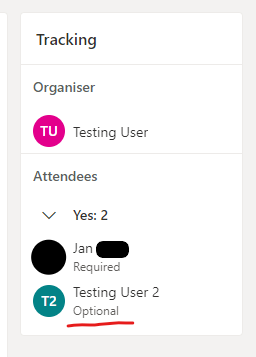
Once the invited user accepts, they will show up as "optional" attendees.
-
When forwarding is enabled on the meeting (default option), you can invite other users by opening the meeting in the calendar by double-clicking on it.

-
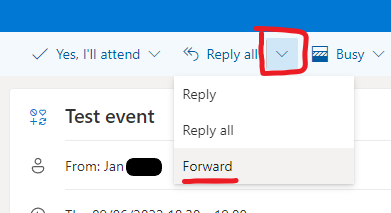
Find "Forward" in the little dropdown menu.
-
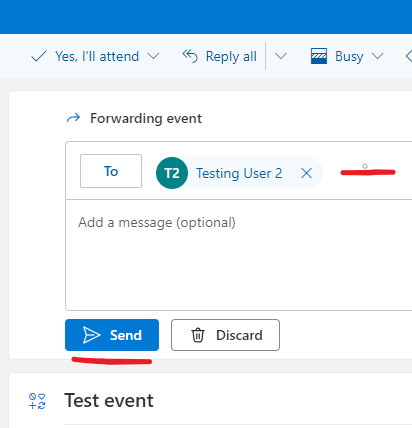
Add attendees, that you'd like to invite, to the "To" field and click "Send". This notifies both the invited attendee as well as the organiser.
-
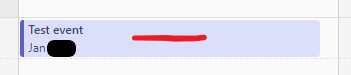
When forwarding is enabled on the meeting (default option), you can invite other users by opening the meeting in the calendar by double-clicking on it.
-
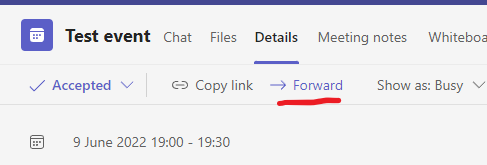
Click "Forward".
-
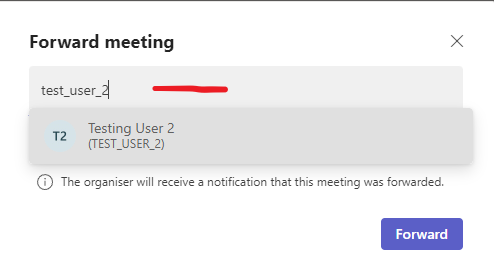
Add new attendees.
-
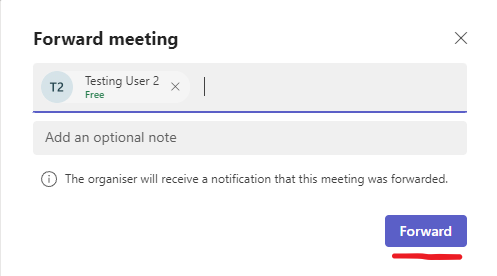
Click "Forward".